How to Use Trust Wallet: A Beginner's Guide
Using Trust Wallet for the first time can seem a bit daunting, but it's a straightforward process once you understand the basic steps. As a non-custodial wallet, you are in full control of your assets, which means you are also responsible for their security.
Here's a beginner's guide on how to set up and use Trust Wallet:
Step 1: Download and Install the App
Official Source: Always download Trust Wallet from the official App Store (for iOS) or Google Play Store (for Android). This is crucial to avoid fake, malicious versions of the app.
Install: Once you find the official app, download and install it on your device.
Step 2: Create a New Wallet
Launch the App: Open the Trust Wallet app and select "Create a new wallet."
Read Terms: Review the Terms of Service and Privacy Policy, and agree to them to proceed.
Set a Passcode: Create a secure 6-digit passcode. This will be used to access your wallet on your device. You may also have the option to enable biometric security like Face ID or a fingerprint.
Step 3: Back Up Your Recovery Phrase (This is the most important step)
Understand the Phrase: Trust Wallet will display a 12-word recovery phrase (also known as a seed phrase). This phrase is the master key to your wallet and all of your funds. It is the only way to restore your wallet if you lose your device or forget your passcode.
Write It Down: Write the 12 words down on a piece of paper and store it in a safe, secure, and offline location.
Never Share or Store Digitally: Never save this phrase on your phone, in an email, on a cloud service, or anywhere else on the internet. Anyone with access to this phrase can take all of your crypto. Trust Wallet will never ask for your recovery phrase.
Confirm: The app will ask you to re-enter the words in the correct order to ensure you've written them down correctly.
Step 4: Add Funds to Your Wallet
There are two main ways to get crypto into your Trust Wallet:
Option 1: Receive Crypto from an Exchange or Another Wallet
Select the Asset: On the main screen, tap on the cryptocurrency you want to receive (e.g., Bitcoin, Ethereum, Solana). If you don't see it, you can use the search bar to add it.
Find Your Address: Tap the "Receive" button. This will display your public wallet address and a QR code.
Copy and Send: Copy this address or share the QR code with the person or exchange you are receiving the crypto from. The sender will use this address to send the funds to you.
Verify: It's always a good idea to send a small test amount first to ensure the process works as expected before sending a larger amount.
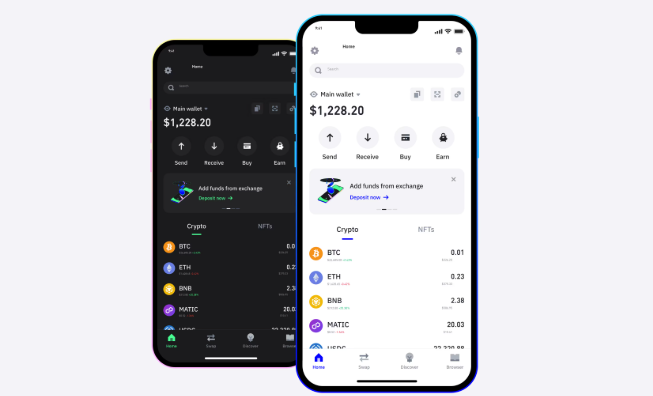
Option 2: Buy Crypto Directly in the App
Tap "Buy": From the main screen, tap the "Buy" button.
Choose the Asset: Select the cryptocurrency you want to purchase.
Follow the Prompts: Enter the amount you want to buy and follow the on-screen instructions. Trust Wallet uses third-party providers (like MoonPay or Simplex) to process these transactions.
Step 5: Send Crypto from Your Wallet
Select the Asset: On the main screen, choose the cryptocurrency you wish to send.
Tap "Send": Tap the "Send" button.
Enter Details: Paste the recipient's public wallet address into the address field or use the QR code scanner.
Input Amount: Enter the amount of crypto you want to send.
Confirm: Review all the transaction details carefully, including the address and the amount, and confirm the transaction. Remember that crypto transactions are irreversible.
Other Key Features
Swap: Trust Wallet has a built-in "Swap" feature that allows you to exchange one cryptocurrency for another without leaving the app.
Staking: You can "stake" certain cryptocurrencies to earn rewards. This is often found under the "Earn" or "Discover" tab.
dApp Browser: Trust Wallet's dApp (decentralized application) browser allows you to interact with various dApps and decentralized exchanges (DEXs) directly from your wallet.
TAG:
