How to Connect to DApps (Decentralized Applications)
How to Connect to DApps (Decentralized Applications): Complete Guide
Connecting your wallet to DApps is essential for accessing DeFi, NFTs, gaming, and the broader Web3 ecosystem. Here's everything you need to know about securely connecting Trust Wallet and other wallets to decentralized applications.
What Does "Connect Wallet" Really Mean?
When you connect your wallet to a DApp, you're not giving away your private keys or recovery phrase. Instead, you're:
Establishing a secure communication channel between your wallet and the DApp
Granting permission for the DApp to view your public addresses and balances
Creating a way to sign transactions without exposing private keys
Maintaining full control - you can disconnect anytime
How to Connect Trust Wallet to DApps
Method 1: Mobile DApp Browser (Within Trust Wallet)
Trust Wallet has a built-in DApp browser for mobile use:
text
1. Open Trust Wallet app
2. Tap the [DApps] tab at the bottom
3. Browse or search for DApps
4. Select a DApp (like Uniswap, OpenSea, etc.)
5. Tap "Connect Wallet" on the DApp
6. Choose "Trust Wallet" or "WalletConnect"
7. Approve the connection request
Note: The built-in browser may not be available in all regions due to app store restrictions. If you don't see it, use Method 2 or 3.
Method 2: WalletConnect (QR Code Method - Most Common)
This works for both mobile and desktop:
On Desktop:
text
1. Go to a DApp website (like app.uniswap.org)
2. Click "Connect Wallet"
3. Select "WalletConnect" from the options
4. A QR code will appear on screen
5. Open Trust Wallet on your phone
6. Tap [Settings] → [WalletConnect]
7. Tap "Scan QR Code" and scan the desktop QR code
8. Approve the connection in your wallet
On Mobile:
text
1. Open the DApp in your mobile browser
2. Tap "Connect Wallet" → "WalletConnect"
3. It will open a "Open in Trust Wallet" prompt
4. Tap to open in Trust Wallet
5. Approve the connection
Method 3: Desktop Browser Extensions
For desktop browsers, use these wallet extensions:
MetaMask (Most Popular):
text
1. Install MetaMask extension for Chrome/Brave/Firefox
2. Create or import wallet (use your existing seed phrase if you want same accounts)
3. Go to DApp website
4. Click "Connect Wallet" → "MetaMask"
5. Approve connection in the popup
Other Wallet Extensions:
Phantom (for Solana DApps)
Keplr (for Cosmos ecosystem)
Temple (for Tezos)
Brave Wallet (built into Brave browser)
Step-by-Step Connection Process
First-Time Connection Flow:
Visit DApp: Navigate to the DApp website
Initiate Connection: Click "Connect Wallet" button
Choose Wallet Type: Select your wallet (MetaMask, WalletConnect, etc.)
Approve Connection Request: A popup in your wallet asks for permission
Select Account: Choose which wallet address to connect (if you have multiple)
Sign Message: Sometimes you need to sign a verification message (this doesn't cost gas)
Connected! You'll see your address/balance in the DApp interface
What You're Actually Approving:
When you connect, you typically grant these permissions:
View wallet address and balance
Request transaction approval (you still confirm each transaction)
Read recent transactions
Switch networks (the DApp can prompt you to switch chains)
Security: Safe Connection Practices
RED FLAGS (Don't Connect!):
Unverified smart contracts (no audit badges)
Unknown/new domains with poor reputation
DApps asking for excessive permissions (like "unlimited spending")
Spelling errors in domain names (uniswqp.org, pancackeswap.finance)
Requests for your private key or recovery phrase (NEVER share these)
Safe Connection Checklist:
Bookmark legitimate DApp URLs (avoid Google search results for DApps)
Check contract verification on Etherscan/Polygonscan
Use hardware wallet for large transactions (Ledger/Trezor)
Review permissions before approving
Connect with a secondary wallet for testing new DApps
Regularly disconnect from unused DApps
WalletConnect Security Tips:
Always verify the connection request shows the correct DApp name
Don't scan QR codes from untrusted sources
Regularly check active sessions in your wallet's WalletConnect settings
Revoke unused sessions to minimize attack surface
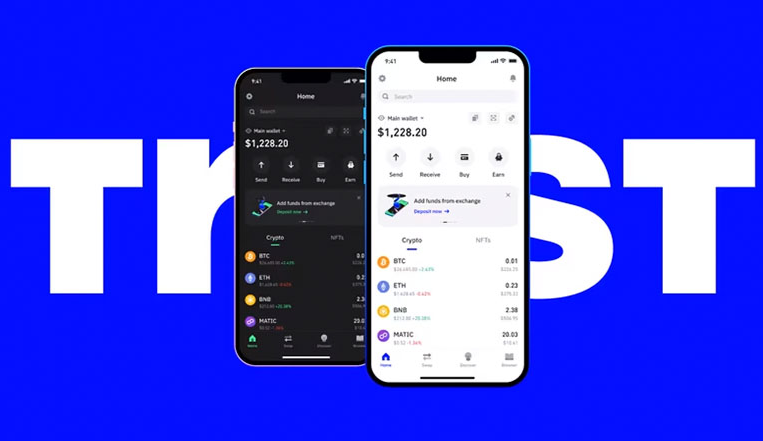
Managing Connected DApps
How to Check Active Connections:
In Trust Wallet:
text
Settings → WalletConnect → Active Sessions
Shows all DApps connected via WalletConnect with option to disconnect.
In MetaMask:
Click the circle icon (top right) → "Connected sites" → Manage connections.
How to Disconnect/Revoke Access:
From Your Wallet:
Go to connected sites/sessions in wallet settings
Find the DApp
Click "Disconnect" or "Revoke"
From the DApp Interface:
Many DApps have a "Disconnect Wallet" button in the top right corner.
Revoking Token Approvals (Critical!):
Even after disconnecting, DApps may still have spending allowances. Check and revoke:
Ethereum/EVMs: Use revoke.cash or etherscan.io/tokenapprovalchecker
Solana: Use spl-token-ui.vercel.app or step.finance/approvals
Cosmos: Use restake.app for staking delegations
Network/Chain Compatibility
Different DApps work on different blockchains. Ensure you're on the correct network:
Common DApp Networks:
Ethereum Mainnet: DeFi bluechips (Uniswap, Aave, Compound)
Polygon: Lower fees (QuickSwap, Aave Polygon)
BNB Smart Chain: Binance ecosystem (PancakeSwap)
Solana: High speed (Raydium, Magic Eden)
Arbitrum/Optimism: Ethereum L2s (GMX, Uniswap on Arbitrum)
Avalanche: EVM compatible (Trader Joe, Benqi)
Switching Networks:
In Trust Wallet: Tap top bar to change network
In MetaMask: Click network dropdown, select/add network
DApp Prompt: Many DApps will ask you to switch networks automatically
Warning: Never add custom RPCs from untrusted sources. Use verified network details from chainlist.org.
Troubleshooting Connection Issues
1. "No Provider Found" Error
Solution: Install a wallet extension (MetaMask) or use WalletConnect
Ensure you're not in incognito mode with extensions disabled
2. "Wrong Network" Error
Solution: Switch to the correct network in your wallet
Some DApps require specific networks (e.g., OpenSea = Ethereum Mainnet)
3. WalletConnect QR Not Scanning
Solution: Ensure camera permissions are granted
Try manually entering the connection URI (long click QR → copy link)
4. Connection Times Out
Solution: Refresh the DApp page and try again
Check internet connection
Update wallet to latest version
5. "Transaction Failed" After Connecting
Solution: This is usually a gas issue, not a connection issue
Ensure you have enough native token for gas fees
Try increasing gas price
6. DApp Not Recognizing Wallet
Solution: Clear browser cache and cookies
Try different browser (Brave/Chrome work best for Web3)
Restart browser and wallet
Advanced: Multiple Wallets & Accounts
Managing Multiple Wallets:
You can connect different wallets to the same DApp:
Disconnect current wallet from the DApp
Connect new wallet using same method
Or use wallet switcher if the DApp supports multiple simultaneous connections
Using Multiple Accounts in One Wallet:
Most wallets support multiple accounts/addresses:
Create new account in your wallet (doesn't require new seed phrase)
When connecting to DApp, choose which account to connect
Switch between accounts in the DApp interface (if supported)
Hardware Wallet Connection:
For maximum security with large holdings:
text
1. Connect hardware wallet (Ledger/Trezor) to computer
2. Open wallet interface (Ledger Live, MetaMask with hardware)
3. Connect to DApp as usual
4. All transactions require physical button press on device
Popular DApp Categories & Connection Tips
1. DeFi DApps (Uniswap, Aave, Compound)
Always check slippage tolerance before trading
Start with small amounts to test
Bookmark official URLs - many phishing sites exist
2. NFT Marketplaces (OpenSea, Magic Eden, Rarible)
Verify collection contract address before buying
Check royalty settings if you're a creator
Be wary of "free mint" DApps - often scams
3. GameFi & Metaverse (Axie Infinity, Decentraland)
May require specific tokens for entry
Sometimes need bridge to specific chain
Watch for gas fees during gameplay actions
4. Staking/Yield Platforms (Lido, Curve, Yearn)
Understand lockup periods before depositing
Check smart contract audits
Monitor APY changes - rates fluctuate
5. DAO Participation (Snapshot, Tally)
Connect with governance token holding wallet
May require token delegation
Voting usually gas-free (off-chain signatures)
Mobile-Specific Tips
For iOS Users:
Use WalletConnect for most connections
Some DApps work better in Brave browser (has built-in wallet)
Trust Wallet DApp browser may be hidden - search for "Browser" in settings to enable
For Android Users:
Can use in-app browsers in most wallets
Enable "Open supported links" in wallet app settings
MetaMask mobile has good DApp browser functionality
Pro Tip: Deep Links
Many DApps support deep linking:
text
1. Tap "Connect Wallet" on mobile site
2. Choose your wallet from list
3. It automatically opens your wallet app
4. Approve connection
5. Returns to DApp automatically
Security Final Checklist
Before connecting to any DApp:
URL is correct (check for misspellings)
Site has SSL certificate (https:// not http://)
Smart contracts are verified (check Etherscan)
Project is reputable (known audits, community trust)
I'm using a test wallet for new/unfamiliar DApps
I've bookmarked the real site for future visits
I know how to disconnect and revoke permissions
After connecting:
I monitor for unexpected transactions
I disconnect when not actively using the DApp
I periodically check token approvals
I keep wallet software updated
Emergency: If You Connected to a Scam Site
IMMEDIATELY disconnect from the DApp
Transfer funds to a new wallet address (not just new account in same wallet)
Revoke all token approvals using revoke.cash
Create new wallet with new seed phrase if you entered any sensitive info
Report the site to wallet providers and community channels
Remember: Legitimate DApps will NEVER ask for your private key or recovery phrase. The "connect wallet" process should only involve clicking approval buttons in your wallet interface.
The Future: WalletConnect v2 & Improvements
WalletConnect v2 (now standard) offers:
Multi-chain support in one session
Better mobile experience
Expired session cleanup
Improved security
Most wallets and DApps have now migrated to v2. If you encounter connection issues, ensure both your wallet and the DApp support the same WalletConnect version.
TAG:
