How to Use Trust Wallet on iOS and Android
Step - by - Step Instructions for Mobile Use
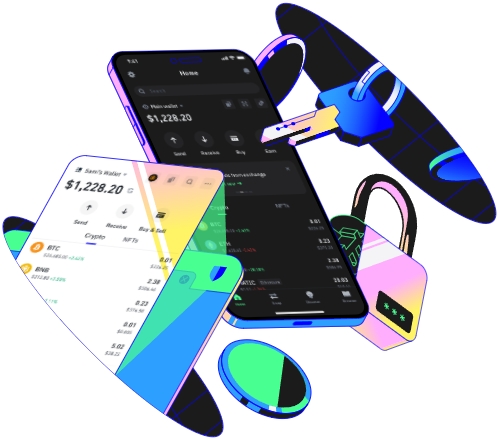
Trust Wallet is a popular cryptocurrency wallet that offers users a secure and convenient way to manage their digital assets. It is available on both iOS and Android platforms, making it accessible to a wide range of users. In this guide, we will explore how to use Trust Wallet on iOS and Android devices.
First, you need to download the Trust Wallet app. On an iOS device, open the App Store. In the search bar, type "Trust Wallet". Once the app appears in the search results, click on the "Get" button and then authenticate with your Apple ID if required. The app will start downloading and installing automatically.
For Android users, head to the Google Play Store. Search for "Trust Wallet" in the search field. When you find the app, tap the "Install" button. The Google Play Store will verify the app and then begin the installation process. It's important to ensure that your device allows installations from the Google Play Store and has enough storage space.
After the app is installed, open it. The first time you launch Trust Wallet, you'll be presented with two main options: "Create a New Wallet" or "Import an Existing Wallet". If you're new to cryptocurrency and Trust Wallet, choose "Create a New Wallet". This will generate a new set of keys and a 12 - word recovery phrase for you. Write down this recovery phrase carefully on a piece of paper and store it in a safe place. This phrase is crucial as it can be used to restore your wallet if your device is lost, stolen, or damaged.
If you already have a wallet and want to import it into Trust Wallet, select "Import an Existing Wallet". You'll need to enter the 12 - word recovery phrase associated with your existing wallet. Make sure to enter the words in the correct order, as any mistake can lead to you being unable to access your funds.
Once your wallet is set up, you can start adding cryptocurrencies. In the app, click on the "+" icon usually located at the top - right corner. A list of available cryptocurrencies will appear. You can search for specific coins or tokens by typing their names or symbols. For example, if you want to add Bitcoin, type "BTC" in the search bar. After selecting the cryptocurrency you want to add, click "Add" to include it in your wallet.
To receive cryptocurrency, go to the wallet page of the specific coin you want to receive. Click on the "Receive" button. A QR code and a wallet address will be displayed. You can share this QR code or address with the sender. The sender can then scan the QR code or paste the address into their wallet to send you the funds. It's important to double - check the address to avoid sending funds to the wrong place.
When it comes to sending cryptocurrency, select the coin you want to send from your wallet. Click on the "Send" button. Enter the recipient's wallet address. You can either type it manually or scan the recipient's QR code if available. Then, enter the amount of cryptocurrency you want to send. Before confirming the transaction, review the details carefully, including the recipient's address and the amount. You may also need to pay a small transaction fee, which is determined by the network congestion and the type of cryptocurrency.
Trust Wallet also offers a built - in DApp browser. To access it, look for the DApp browser icon in the app. The DApp browser allows you to interact with decentralized applications. You can use it to participate in decentralized finance (DeFi) protocols, play blockchain - based games, and more. When using the DApp browser, make sure to be cautious as some DApps may have security risks.
Another important feature is the ability to set up a PIN or biometric authentication. Go to the app's settings. Look for the security or authentication section. You can set up a PIN code that you'll need to enter every time you open the app. Alternatively, if your device supports it, you can enable biometric authentication such as fingerprint or face recognition. This adds an extra layer of security to your wallet.
Regularly update your Trust Wallet app. Both the App Store and Google Play Store will notify you when an update is available. Updates often include security patches, new features, and performance improvements. Keeping your app up - to - date ensures that you have the best experience and the highest level of security.
Finally, always be aware of security best practices. Avoid sharing your recovery phrase with anyone. Be cautious of phishing attempts, such as fake wallet apps or websites that try to steal your login information. Only download the official Trust Wallet app from the App Store or Google Play Store. By following these steps, you can use Trust Wallet on your iOS or Android device safely and effectively to manage your cryptocurrency assets.