Setting Up and Using the Trust Wallet Browser Extension
The Trust Wallet browser extension is NOT the same as the mobile app and has different security considerations:
Separate Seed Phrase: The extension creates a new wallet with a new seed phrase by default
No Mobile Sync: It doesn't automatically sync with your mobile Trust Wallet
Impersonator Risk: Many fake Trust Wallet extensions exist - only download from official sources
Phishing Targets: Browser extensions are common targets for phishing attacks
Part 1: Official Installation
Only Download From These Official Sources:
Chrome Web Store: Trust Wallet Extension
Microsoft Edge Add-ons: Trust Wallet for Edge
Firefox Add-ons: Trust Wallet for Firefox
DO NOT:
Download from third-party websites
Install from random GitHub repositories
Use links from social media or emails
Installation Steps:
text
1. Go to your browser's extension store (Chrome Web Store, etc.)
2. Search "Trust Wallet"
3. Verify it's by "trustwallet.com" with 1M+ users
4. Click "Add to Chrome"/"Add to Firefox"
5. Click "Add extension" in the popup
6. Pin the extension to your toolbar for easy access
Part 2: Initial Setup
Option A: Create a New Wallet (Recommended for Separate Use)
text
1. Click the Trust Wallet extension icon in your toolbar
2. Click "Create a new wallet"
3. Read and accept the Terms of Service
4. **CRITICAL: Write down your 12-word recovery phrase**
- Write it on paper, NOT digitally
- Store it in a secure location
- Never share it with anyone
5. Confirm your recovery phrase by selecting words in order
6. Set a strong password for local encryption (optional but recommended)
7. Your wallet is ready!
Important: This creates a brand new wallet with zero connection to your mobile Trust Wallet.
Option B: Import Existing Wallet
You can import your mobile Trust Wallet or any other wallet:
text
1. Click "I already have a wallet"
2. Choose import method:
- **Recovery Phrase:** Enter 12, 18, or 24-word phrase
- **Private Key:** Enter a single private key
- **Keystore JSON:** Upload encrypted JSON file (with password)
3. Follow the import steps
4. Set a password for the extension
WARNING: Only import on trusted, malware-free computers. Entering your seed phrase on a compromised device risks losing all funds.
Option C: Connect Hardware Wallet
For maximum security with large holdings:
text
1. Click "Connect Hardware Wallet"
2. Choose Ledger or Trezor
3. Connect your hardware wallet via USB
4. Unlock with PIN
5. Select accounts to import
6. All transactions require physical confirmation on device
Part 3: Interface & Features Tour
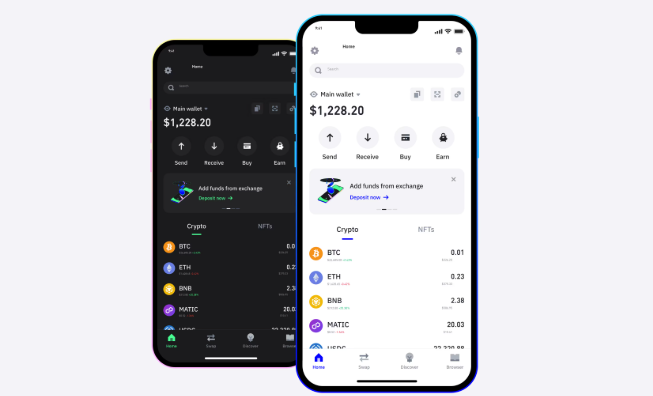
Main Dashboard:
Total Balance: Sum of all assets across networks
Assets List: Tokens on current network
Network Selector: Switch between blockchains
Send/Receive/Swap: Quick action buttons
Activity: Recent transactions
Networks Supported:
EVM Chains: Ethereum, BSC, Polygon, Arbitrum, Optimism, Avalanche, etc.
Non-EVM: Solana, Bitcoin (limited functionality), Cosmos (coming)
Testnets: Goerli, Sepolia, Mumbai, etc.
Key Features:
Built-in Swap: Exchange tokens directly in the extension (via 1inch, etc.)
Buy with Fiat: Purchase crypto with card/bank transfer
NFT Display: View ERC-721/1155 NFTs
DApp Browser: Built-in Web3 browser (limited to approved sites)
Custom Tokens: Add any ERC-20 token via contract address
Part 4: Connecting to DApps
Method 1: Automatic Detection (Most Common)
text
1. Visit a DApp website (like app.uniswap.org)
2. Click "Connect Wallet"
3. Select "Trust" or "Trust Wallet" from the list
4. Extension will pop up asking for connection approval
5. Review permissions and click "Connect"
6. Select which account(s) to connect
Method 2: WalletConnect (For Mobile-First DApps)
text
1. On DApp, click "WalletConnect"
2. Copy the connection URI or QR code
3. Click Trust Wallet extension icon
4. Go to Settings → WalletConnect
5. Paste URI or scan QR with webcam
6. Approve the connection
Method 3: Manual Injection (Legacy DApps)
Some older DApps require manual injection:
text
1. Click Trust Wallet extension
2. Go to Settings → Networks
3. Enable "Inject Trust Wallet as Web3 Provider"
4. Refresh DApp page
Part 5: Security Best Practices
Essential Security Settings:
Enable Password Protection:
text
Settings → Security → Require password for transactions
Set Up Session Timeout:
text
Settings → Security → Auto-lock timer (set to 5-15 minutes)
Manage Connected Sites:
text
Settings → Connected Sites → Review and revoke unused connections
Phishing Protection:
text
Settings → Security → Enable phishing detection (usually on by default)
Daily Security Habits:
Verify Every Transaction:
Check recipient address (first/last chars)
Verify amount and network
Check gas fees
Monitor Connected Sites Weekly:
Revoke access to unused DApps
Check for suspicious connections
Token Approval Management:
Use revoke.cash monthly
Remove unlimited approvals
Set spending caps when possible
High-Security Measures:
Use Dedicated Browser:
Install Trust Wallet only on a clean browser profile
Don't install other extensions (reduces attack surface)
Cold Storage for Large Amounts:
Keep bulk funds in hardware wallet
Use extension only for daily transactions
Regular Malware Scans:
Scan your computer weekly
Use browser extensions like "NoScript" or "uBlock Origin"
Part 6: Managing Multiple Accounts
Adding New Accounts:
text
1. Click extension icon
2. Click your account name/avatar
3. Select "Add Account"
4. Choose:
- Create new (new seed phrase)
- Import existing (same seed phrase, different derivation path)
- Connect hardware wallet
5. Name the account for easy identification
Switching Between Accounts:
Click account name in extension
Select different account from dropdown
DApps will need to reconnect when switching
Account Organization Tips:
Personal: Daily spending
Savings: Long-term holdings
DeFi: Yield farming, staking
NFTs: Digital collectibles
Testing: New DApps, experimental transactions
Part 7: Common Operations
Sending Funds:
text
1. Click "Send" in extension
2. Enter recipient address (double-check!)
3. Select token and amount
4. Choose network (ensure it matches recipient)
5. Adjust gas fees (Low/Medium/High)
6. Review and confirm
7. Enter password if enabled
Receiving Funds:
text
1. Click "Receive" in extension
2. Copy your address or scan QR
3. Share with sender
4. Ensure sender uses correct network
5. Wait for confirmations (1-30 depending on network)
Swapping Tokens:
text
1. Click "Swap" in extension
2. Select tokens to swap from/to
3. Enter amount
4. Review exchange rate and fees
5. Click "Swap"
6. Confirm transaction in popup
Adding Custom Tokens:
text
1. Click "Add Token"
2. Switch to correct network first
3. Enter token contract address
4. Token details auto-populate
5. Verify symbol and decimals
6. Click "Add"
Part 8: Troubleshooting Common Issues
1. Extension Not Connecting to DApps
Fix: Ensure extension is unlocked and on correct network
Alternative: Try WalletConnect method
Check: No other wallet extensions interfering (disable others temporarily)
2. "No Provider Found" Error
Fix: Go to Settings → Networks → Enable "Inject Trust Wallet as Web3 Provider"
Also: Try refreshing page, restarting browser
3. Transactions Stuck/Pending
Fix: Check activity tab, try speeding up or canceling
Prevention: Always set appropriate gas fees during congestion
4. Wrong Network Displayed
Fix: Click network selector, choose correct chain
Note: Some DApps automatically switch networks
5. Balance Not Showing/Updating
Fix: Refresh with Ctrl+R or F5
Check: You're on correct network for that token
Manual: Click "Refresh" button in assets list
6. Extension Crashing/Not Loading
Fix: Remove and reinstall from official store
Note: Your funds are safe on blockchain, reimport with seed phrase
7. Can't Import Mobile Wallet
Ensure: You're using the exact same recovery phrase
Check: Derivation path matches (usually automatic)
Try: Import via private key instead of seed phrase
Part 9: Advanced Features & Tips
Custom RPC Endpoints:
For better performance or privacy:
text
Settings → Networks → Select network → Edit → Custom RPC
Use endpoints from:
Chainlist.org (verified)
Official chain documentation
Reputable RPC providers (Infura, Alchemy, QuickNode)
TAG:
